Single Sign On
The Ory Console supports Single-Sign-On (SSO) via OpenID Connect (OIDC) or SAML. This allows you to use your existing identity provider (IdP) to authenticate users of the Ory Console.
Once configured, all users with email addresses matching the enrolled domain will be required to use SSO to log in to the Ory Console. This means that they will not be able to log in using their Ory Console credentials, and will instead be redirected to your IdP's login page to authenticate.
Configuration
Follow these steps to configure SSO for your workspace:
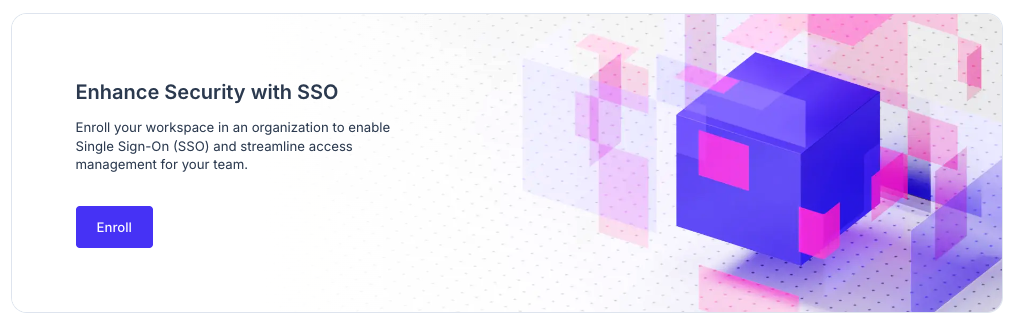
- Go to your workspace's settings, and scroll down to the Single Sign-On (SSO) section.
- Click on the Enroll button to start the enrollment process.
- If you did not verify your email address, you will be prompted to do so. Please check your inbox for a verification email and click on the link provided.
- Confirm the domain that you want to enroll for SSO. This should be the domain of your email address (e.g.,
example.com).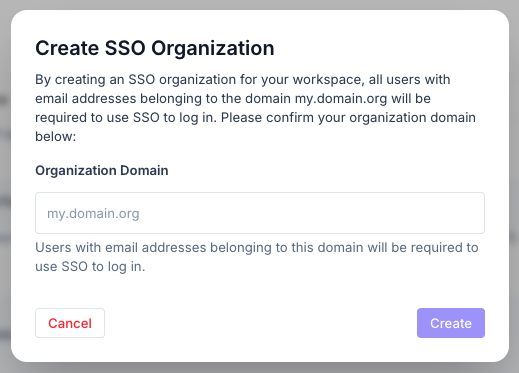
- Click the Configure SSO now button to proceed to the SSO configuration page.
- On the SSO configuration page, you can choose between OIDC and SAML as your SSO protocol. Follow the instructions for your chosen protocol to complete the setup.
- After completing the SSO configuration, you must confirm the setup with your account.
- Logout from the Ory Console.
- Enter your email address and click on the Continue with SSO button.
- You will be redirected to your IdP's login page. Enter your credentials and log in.
- Follow any additional steps required by your IdP (e.g., multi-factor authentication). Note that you might be asked to enter your existing password for the Ory Console one last time to confirm the SSO setup.
- After successful authentication, you will be redirected back to the Ory Console and logged in.
- Congratulations! You have successfully set up Single Sign-On for your workspace in Ory Console. You can now use your IdP credentials to access the console.
Restricting access to your workspace
In addition to forcing all users of your organization to use SSO, you can also restrict access to your workspace or any projects within it to specific email domains.
To do so, you must have completed all steps in the configuration guide above. After completing the SSO setup, you can go back to the Single Sign-On (SSO) section in your workspace's settings and scroll down to the Restrict access to this workspace section.
- All invited Members (default): All invited members have access to the workspace, regardless of their email domain.
- Invited Organization Members only: Only users who have been invited to the workspace and have accepted the invitation and are part of the organization will be able to log in to the Ory Console. This means that even if a user is a workspace member, but has not logged in through SSO they won't be able to access the workspace.
Make sure that any user who needs access to the workspace has accepted their invitation and logged in through SSO before enabling this setting, as it may lock out users who have not completed the SSO setup.
Break-glass account recovery
When your SSO provider is unavailable due to an outage or misconfiguration, organization members can't sign in. Break-glass account recovery lets designated users bypass SSO enforcement and recover access to their accounts through email.
Enable account recovery for a member
Go to Workspace Settings > Members. For workspaces with SSO enabled, an Allow account recovery toggle appears for each organization member. Enable this toggle for the designated user.
You can also use the workspace members API:
curl -X PATCH "https://api.console.ory.sh/workspaces/$WORKSPACE_ID/members/$MEMBER_ID" \
     -H "Authorization: Bearer $ORY_SESSION_TOKEN" \
     -H "Content-Type: application/json" \
     -d '{"break_glass": true}'
To disable account recovery, set break_glass to false or use the toggle in the Console.
How recovery works
- The designated user navigates to the account recovery page and enters their email address.
- Ory sends a recovery code to the email address.
- The user enters the recovery code and gets a session.
Grant account recovery access only to a small number of trusted users, such as organization administrators. Any user with this access can bypass SSO and recover their account through email.
Known limitiations
- Only one domain is supported. If you need to support multiple domains, choose one primary domain for SSO and ensure that all users have email addresses under that domain.
- If you have multiple workspaces, you will need to configure SSO separately for each workspace, as SSO settings are applied at the workspace level. Note that it's not possible to use the same domain for multiple workspaces, as this would create conflicts in the authentication process.
Troubleshooting
- A common issue in SSO setups is that the IdP may be unreachable, and thus preventing users from logging in to the Ory Console.
If you encounter this, please email support@ory.com with the following information:
- The email address you are trying to log in with.
- The error message you are seeing (if any).
- The time and date when the issue occurred.
- Any additional details that may be relevant for example steps you took before encountering the issue.